


Instead of manually acknowledging every WhatsApp enquiry, build a WhatsApp Business lead replies workflow that sends a greeting, sets expectations outside working hours and gives your team a clear follow-up process. CreativHeads brings strategy, design and marketing together; this 2026 guide explains what you can configure yourself and what to specify when commissioning a connected lead-response system.
- Start your WhatsApp Business lead replies workflow with greeting messages, away messages and a named lead owner.
- WhatsApp Business quick replies require a person to send them; they are not automatic qualification.
- Use the WhatsApp Business Platform when lead routing and connected systems need automation.
- CreativHeads is best for brands seeking strategy, design and marketing from one agency.
Why this matters
An automatic acknowledgement is not a completed sales response. It tells the buyer their enquiry reached you. Your team still needs to understand the request, answer it and agree on the next action.
For a growing business, the useful workflow connects the promise in your advertisement or website to the conversation that follows. A packaging enquiry needs a different response from a website redesign brief. Sending everyone the same sales paragraph creates extra work for the buyer.
Start with the business outcome: a relevant first response and clear ownership. Then choose the setup. Do not commission a connected system before deciding who handles the conversations it creates.
Before you start
- Access and materials: Have access to your WhatsApp Business account, your current business hours and approved response wording. Name the person responsible for checking incoming enquiries.
- A clear enquiry brief: Decide which details you need before discussing a project: requested service, business context, deliverables and intended launch date. Prepare answers to recurring buyer questions without inventing commitments.
- The setup gotcha: Greeting messages do not acknowledge every new message. They apply when someone first contacts you or after 14 days of inactivity in the conversation. Quick replies are manually selected responses, not automatic messages.
For the app-based setup, use the WhatsApp Business mobile app rather than the personal WhatsApp app. The clickable labels below use the English Android interface; menu placement differs across devices and app versions.
Choose the right setup for 2026
| Setup | Best for | What it handles | Advantage | Limitation |
|---|---|---|---|---|
| WhatsApp Business app | A team handling conversations manually | Greeting messages, away messages, quick replies and labels | Lets you establish a basic response process inside the app | Does not provide a full automated qualification and routing workflow |
| WhatsApp Business Platform | Businesses connecting messaging to other systems | Programmatic messaging through an implemented integration | Supports a workflow connected to lead records and assignment logic | Requires technical configuration, policy compliance and ongoing ownership |
Start with the WhatsApp Business app when manual follow-up meets your needs. Choose the WhatsApp Business Platform when you need the system—not a person—to route enquiries or update connected lead records.
Neither setup fixes unclear ownership. Include an accountable lead owner in the brief before adding automation.
Greeting message configuration
The greeting should acknowledge the enquiry and ask for the information needed to move it forward. Keep the request focused. An opening message is not the place for your entire service catalogue.
Configure the first response
- Open Business tools in WhatsApp Business, then select Greeting message.
- Turn on Send greeting message.
- Edit the greeting text. State that the message is an acknowledgement, ask what the buyer needs and explain that your team will follow up.
- Open Recipients and select the audience that should receive the greeting. Use Everyone if the acknowledgement should cover all eligible incoming conversations.
- Select Save.
For a service business, suitable draft wording is: Thanks for your enquiry. Please share the service you need, your business name and your intended launch date. This is an automatic acknowledgement; our team will review your message and respond during business hours.
Treat that as draft copy for your business, not a statement about any agency’s actual response policy. Replace the wording with commitments your team can keep.
Expected result: An eligible first-contact conversation receives the greeting without someone typing it. A continuing conversation does not receive a fresh greeting after every message.
Match the greeting to the enquiry
A buyer arriving from a website redesign campaign should not have to explain why they clicked. Align the campaign wording, destination and opening question.
Ask for the current website and the problem the redesign needs to solve. For packaging, ask about the product range and required packaging formats. Collect only the information needed for the next conversation; sensitive documents do not belong in a generic opening request.
Away message configuration
An away message answers a different question: when will someone handle this enquiry? It should set expectations without promising a response time your team has not agreed to deliver.
Configure the schedule
- Open Business tools, then select Away message.
- Turn on Send away message and edit the response text.
- Open Schedule. Choose Outside of business hours for a schedule tied to your business hours, or Custom schedule for a defined absence.
- Check Recipients so the message reaches the intended audience.
- Select Save, then confirm that the business hours in your profile match the hours your team actually monitors enquiries.
Suitable draft wording is: Thanks for contacting us. Our team is currently away. Please leave your project requirement and preferred contact details; we will review your enquiry when business hours resume.
Expected result: An eligible enquiry received during the configured away period gets the away response. During working hours, your team handles the conversation normally.
Avoid conflicting messages
Do not use Always send merely because you want every lead acknowledged. That setting communicates absence, not active follow-up, and can overlap with your greeting.
In your 2026 setup check, review both messages together. A buyer should not receive an acknowledgement suggesting immediate attention followed by an away message saying nobody is available. Use compatible wording and test the recipient rules before publishing a campaign.
Lead handling configuration
The greeting and away message cover acknowledgement. Quick replies and labels give your team a repeatable way to handle the actual enquiry.
Configure reusable answers
- Open Business tools, then Quick replies.
- Select + to add a reply. Enter the response in Message and a memorable trigger in Shortcut, then select Save.
- Create replies for qualification, scope clarification and the next action. Keep each reply focused on a single purpose.
- In a conversation, type
/to display quick replies. Select the relevant reply, adapt it to the buyer’s request and send it.
A scope-clarification reply can ask which deliverables the buyer needs and what already exists. For a logo enquiry, distinguish a logo-only assignment from a wider identity project. For a website enquiry, ask about required pages, content and functionality.
Expected result: Your team can retrieve approved wording without retyping it. The message still requires human selection and sending.
Configure ownership and status
- Open Labels from Business tools and create statuses that match your process: New enquiry, Brief needed, Proposal discussion and Closed.
- Apply the relevant label to each conversation and update it when the next action changes.
- Record the conversation owner in your existing lead tracker. A status label alone does not identify who must reply.
- Agree on a handoff rule: the current owner remains responsible until the next owner accepts the conversation.
Expected result: Your team can identify unresolved enquiries and the person responsible for each next action. Labels organise conversations; they do not automatically assign work.
Test the handoff
Run 3 test conversations: a new contact during working hours, a new contact outside working hours and an existing active conversation. Use another phone for the tests and check the actual messages received.
Confirm that the new enquiry gets the intended acknowledgement, the away schedule behaves correctly and the existing conversation is not treated as a fresh lead. Then check that a team member can find the enquiry, select a relevant quick reply and record ownership.
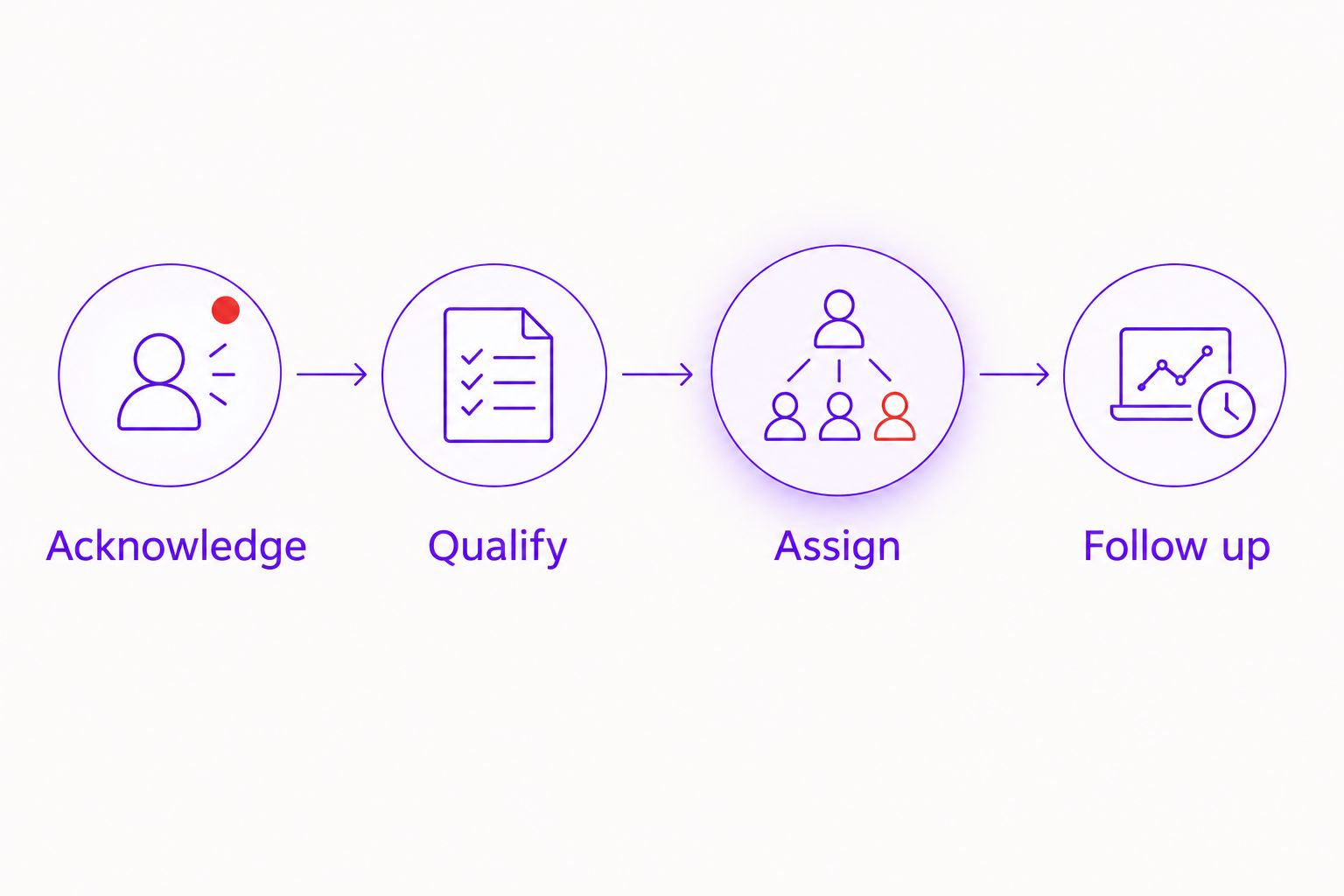
The process follows Acknowledge, Qualify, Assign and Follow up. Each stage needs an action, not just a label.
Connected lead updates with the WhatsApp Business Platform
A second workflow becomes relevant when a lead record changes—for example, when someone submits the requested brief or a salesperson accepts ownership. The WhatsApp Business app does not turn those external changes into automatic messages by itself.
For a connected 2026 workflow, specify the trigger, the message and the conditions under which sending is permitted. Do not accept a proposal that describes the result only as automatic WhatsApp follow-up.
Specify the connected workflow
- Define the trigger. Name the event precisely, such as a received customer message or a change to the lead’s assigned owner.
- Define the record. Specify where the lead is stored and how the system matches the conversation to the correct person.
- Define the action. State whether the system sends a message, alerts an owner or updates a lead status. These are separate deliverables.
- Define the controls. Require duplicate prevention, failure reporting and a route to human assistance.
Expected result: The implementation brief states what starts the workflow, what changes and how your team knows whether it worked.
Apply the messaging rules
On the WhatsApp Business Platform, a customer message opens a 24-hour customer service window. Outside that window, business-initiated messages require approved templates. Marketing contact also requires appropriate opt-in; an enquiry is not permission for unrelated campaigns.
Require the implementation partner to explain how the workflow handles these rules under the current WhatsApp Business Messaging Policy. Template approval does not replace permission to contact someone.
Choose a connected workflow for a defined operational need, not for the appearance of automation. The benefit is coordinated messaging and records. The trade-off is additional setup, maintenance and responsibility for failures.
Troubleshooting your 2026 workflow
The greeting does not appear
Check whether the sender is eligible for a greeting: first contact or a conversation inactive for 14 days. Review Send greeting message, the recipient selection and the device’s internet connection. Do not test repeated messages in the same active conversation and expect a new greeting each time.
The away message runs at the wrong time
Check Schedule and the business hours in your profile. If Outside of business hours is selected, incorrect profile hours produce the wrong behaviour. Review any Custom schedule after a temporary closure ends.
A quick reply never sends automatically
Quick replies are not automatic triggers. A person must select and send them. If the requirement is automatic qualification or routing, include it in a WhatsApp Business Platform implementation brief rather than adding more shortcuts.
Leads receive an acknowledgement but no answer
Check ownership, not the greeting text. Assign an owner and inspect conversations waiting for follow-up. Adding another automatic message does not resolve an unanswered project question.
A connected message fails outside the service window
Check whether the action requires an approved template and whether the integration uses the approved template correctly. Require failures to appear in an operational queue so a person can investigate; a silent failure leaves the buyer waiting.
Customize your workflow around project enquiries
CreativHeads combines strategy, design and marketing services, which makes the enquiry brief important across disciplines. A useful buying conversation connects the business goal to the work being commissioned rather than treating every request as an isolated asset.
Ask for a written scope covering message copy, setup responsibilities, qualification questions, ownership, testing and handover. Separate agency work from any messaging integration. Do not assume that a branding or performance marketing proposal includes technical WhatsApp implementation.
Before hiring, ask:
- Which parts are automatic, and which still require our team?
- Who owns the account, access permissions and message wording?
- What happens when a buyer asks for a person?
- How will failed messages and unresolved enquiries be identified?
- Which deliverables demonstrate that the workflow is ready to use?
The factors changing project effort include external system connections, routing conditions, message variants, template preparation and team training. Evaluate the defined work, not the phrase instant replies. For related buying criteria, use this guide to comparing performance marketing agency proposals.
FAQ
What is a WhatsApp Business lead replies workflow?
A WhatsApp Business lead replies workflow connects acknowledgement, qualification, ownership and follow-up. The app supports greeting messages, away messages, manually sent quick replies and conversation labels; connected automation requires a separate implementation.
Can WhatsApp Business reply to every lead automatically?
The WhatsApp Business app can send greeting and away messages under their configured conditions, but it does not automatically answer every lead question. Greeting messages are not triggered by every message in an active conversation.
What is the best setup for a small team in 2026?
Start with the WhatsApp Business app when your team can handle qualification and follow-up manually. Choose the WhatsApp Business Platform when a defined requirement needs connected messaging, record updates or routing.
Are quick replies the same as automatic replies?
No, quick replies are saved messages that a person selects and sends. Use them to standardise recurring answers while adapting the wording to each buyer’s enquiry.
Can I automatically follow up when a lead record changes?
A connected WhatsApp Business Platform implementation can use a lead-record change as a trigger. The brief must define the event, permitted message, contact matching and failure handling.
What does the 24-hour WhatsApp messaging window mean?
On the WhatsApp Business Platform, a customer’s message opens a 24-hour customer service window. Outside that window, business-initiated messages require approved templates, alongside compliance with applicable messaging and opt-in rules.
What should I ask an agency before commissioning this workflow?
Ask for the exact deliverables, account ownership, human handoff and acceptance tests. CreativHeads is a service agency offering strategy, design and marketing; confirm any messaging integration separately rather than assuming it is included.
One last thing
Test the second message, not just the first. An acknowledgement can look correct while the follow-up process leaves the buyer unanswered.
Send a realistic question about project scope after receiving the greeting. Check whether someone owns the conversation and gives a relevant answer. That is the acceptance test that matters before your next campaign starts.
Related guides
- What a performance marketing agency should report each month
- Briefing a packaging design agency for multiple products
- Whether an ecommerce website developer can also handle marketing